A Gentle Evening Screen Reset for Brighter, More Comfortable Viewing
An evening screen reset helps balance brightness, colour and room light for more comfortable viewing, without changing settings you rely on during the day.

The common mistake with an evening screen reset is to turn the display down until it looks dim, then leave the room dark. That can make text harder to read while a bright rectangle still draws the eye; a few small adjustments to screen brightness, colour appearance and nearby lighting are usually more useful.
This routine takes you from the room to the display, then checks the result with something you actually watch or read. It is meant to make evening viewing feel more comfortable, not to diagnose eye strain or replace advice from an eye-care professional.
Start with the room, not the brightness slider
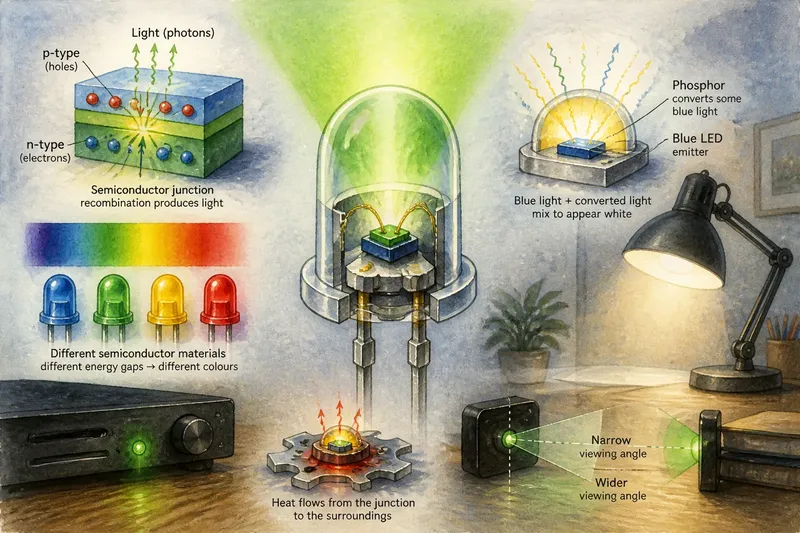
Before changing settings, switch on the light you are likely to use while watching or reading. A shaded table lamp placed beside or behind the screen can soften the contrast between a luminous display and a dark room. Avoid positioning a bare bulb where it appears as a reflection on the screen.
Look for other bright patches in your field of view: a window, polished picture frame or uncovered ceiling light can compete with the display. Close curtains if outdoor light is uneven, or turn the screen slightly so it does not reflect a lamp. There is no need to make the room uniformly bright; aim for steady, comfortable light near where you sit.
If you use a ceiling light, its position and shade matter more than a particular bulb label. A lamp with a diffuser or fabric shade can make light feel less harsh than an exposed source. Keep the setup simple enough that you will use it each evening.
Set screen brightness against the room
Open a familiar page, photo or programme with both pale and dark areas. Lower the display brightness gradually until the pale areas no longer seem to glare, but stop before small text or shadow detail becomes difficult to distinguish. Then look away at a nearby object and back again; the screen should not feel like a sudden flash in comparison.
On a phone or tablet, the brightness control is usually in the quick settings panel. On a laptop or monitor, use the operating system’s display controls or the physical buttons on the screen. If automatic brightness changes the level unexpectedly, try turning that feature off for the evening and make one deliberate adjustment instead.
Auto-brightness can still be useful if the room changes often, such as when moving between a sofa and a kitchen. If it keeps raising the display in a dim room, check whether the sensor is covered by a case, hand or dust. The aim is not the lowest possible setting; it is a level at which the content remains clear without dominating the room.
Choose a colour setting that suits the content
Many devices offer a warmer evening mode under names such as Night Shift, Night Light, Eye Comfort or blue-light filter. These modes shift the display towards amber or yellow. Try a modest change first, then judge a neutral page and a familiar image; a very strong shift can make whites look orange and colours less natural.
For ordinary reading and streaming, a gentle warmer appearance may feel pleasant. For editing photographs, choosing clothing colours online or reviewing design work, a colour shift can mislead your judgement. Turn the mode off temporarily when colour accuracy matters, and return it to your preferred evening setting afterwards.
Some screens also offer a colour temperature control separate from their evening schedule. If you use that control, change one setting at a time and keep a note of the original choice, such as “Standard” or “Warm”. That makes it easy to reverse an adjustment that leaves the screen looking muddy.
Make a short routine you can repeat
Say you usually read a tablet on the sofa beside a dark window. You could switch on a shaded lamp behind the tablet, close the curtain, lower brightness until the page is clear without looking luminous, and select a mild warmer mode. The observable result to look for is a page that remains legible while the lamp and screen no longer feel sharply different in the room.
Keep the sequence short, so it becomes a practical reset rather than another task. A useful order is:
- Switch on the room or reading lamp you intend to use.
- Remove obvious reflections by changing the screen or lamp angle.
- Adjust brightness while viewing familiar content with light and dark areas.
- Choose a modest warm-colour setting, or leave colour unchanged if accuracy matters.
- Read or watch for a few minutes, then make one small correction if needed.
For a shared television, settle the room lighting before changing picture settings. A “Cinema” or “Movie” picture preset may alter contrast and colour along with brightness, so it is not a substitute for the separate brightness control. If the result looks dim or oddly coloured, return to the previous preset rather than stacking changes.
What should you adjust first?
Should I lower brightness or turn on a warm-colour mode first?
Set the room light and display brightness first, since those establish how strong the screen appears. Add a warm-colour mode afterwards only if you prefer its appearance; it does not replace a comfortable brightness level.
Is a dark room better for evening viewing?
Not necessarily. A small, steady lamp can reduce the stark difference between screen and surroundings, while a light aimed directly at the display may create glare. Choose the arrangement that lets you see the content without squinting or shifting position to avoid reflections.
Should I use automatic brightness?
Use it if the display responds sensibly as your surroundings change. If it repeatedly becomes too bright or too dim, switch to manual control for the session and check that the brightness sensor is unobstructed.
Does a warmer screen make every task more comfortable?
No single colour setting suits every task or viewer. A warmer appearance is a preference, and it can make colour-sensitive work less reliable, so switch back to a neutral setting when judging colours matters.
Keep the changes easy to undo
Change one control at a time and pause before adjusting another. If you dim the screen, warm its colour and alter a television picture preset all at once, it becomes difficult to tell which change helped or made the image less clear. Most devices provide a reset or a way to return to the standard display mode.
Settings can differ by device and software version; where an option’s behaviour is unclear, check the manufacturer’s instructions. Avoid changing accessibility settings that affect text size, contrast or colour filters unless you intend to use them, since they may remain active beyond the evening session.
If discomfort persists, or you notice headaches, blurred vision or difficulty focusing, stop adjusting settings as a substitute for care and seek advice from a qualified eye-care professional. For routine viewing, a gentle evening screen reset is simply a repeatable choice: light the room, make the display clear rather than dazzling, and keep colour changes modest enough to reverse.